
Introduction
In the previous blog on adaptive search, we demonstrated how to run complex queries across various business objects using the Adaptive Search REST APIs.
However, sometimes one may need help in creating these queries. E.g., you might be new to it and not aware of the syntax and need it for a quick demo. At times, the field names (especially custom fields) might be difficult to figure if you are new to the project.
We’ll see how you can quickly create the query from the UI and then use it in the call to the REST API.
Main Article
In this post, we’ll create a complex query to find Opportunities based on the following conditions:
Record Set = All Opportunities I can see
Status Code is one of OPEN, LOST, NO_SALE or WON
Primary Contact’s city is London
Account’s Primary Address is in London
If you are not intimately familiar with the syntax and field names, you may find hard to build a JSON payload for this query.
Let’s see how we can do it from the UI and then access it using REST APIs
Create a Saved Search meeting your criteria from the UI
Navigate to the Workspace UI

The default view opens up the default query for the Accounts object (All Accounts). The result of the query are displayed in the workarea
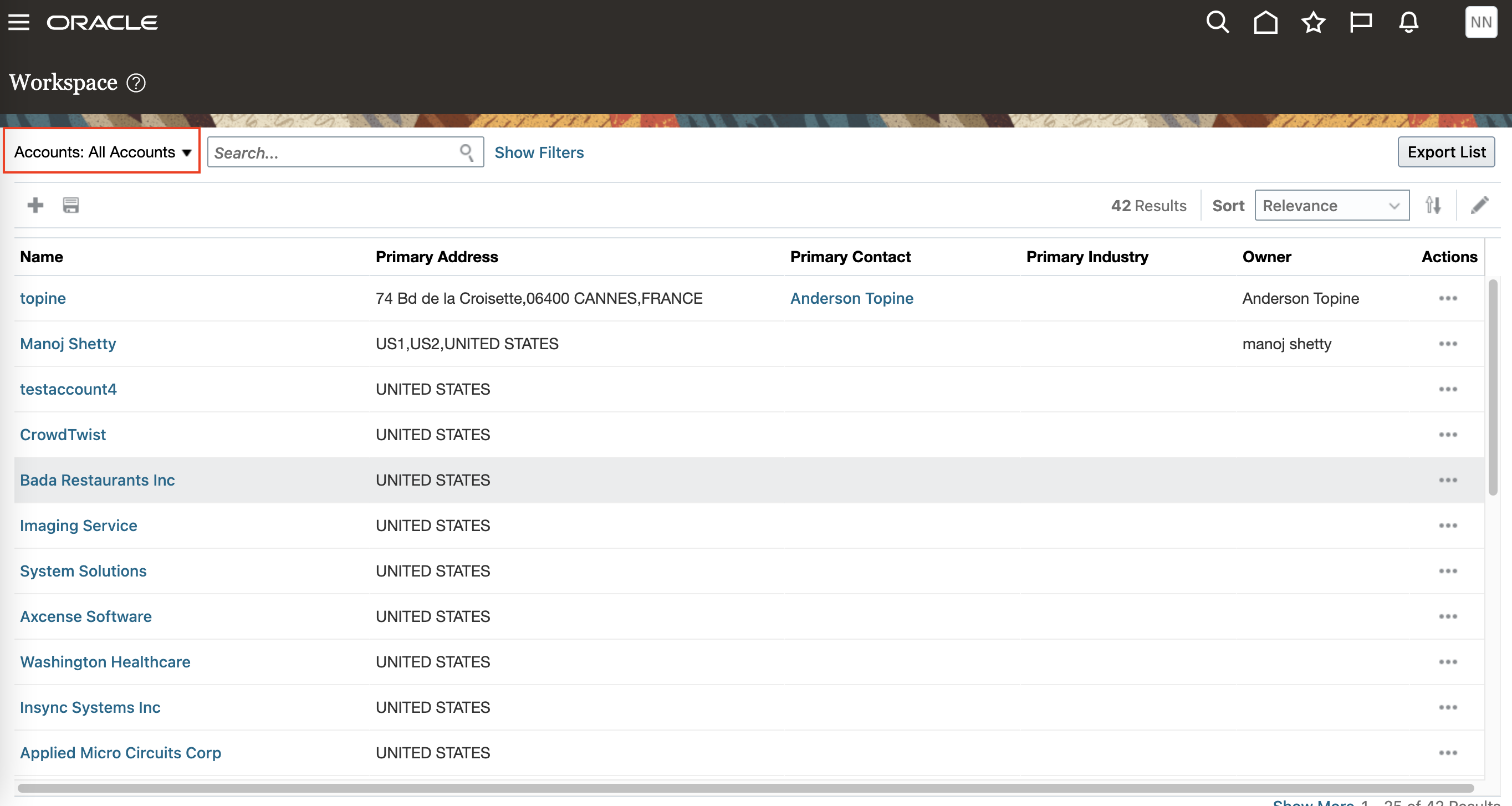
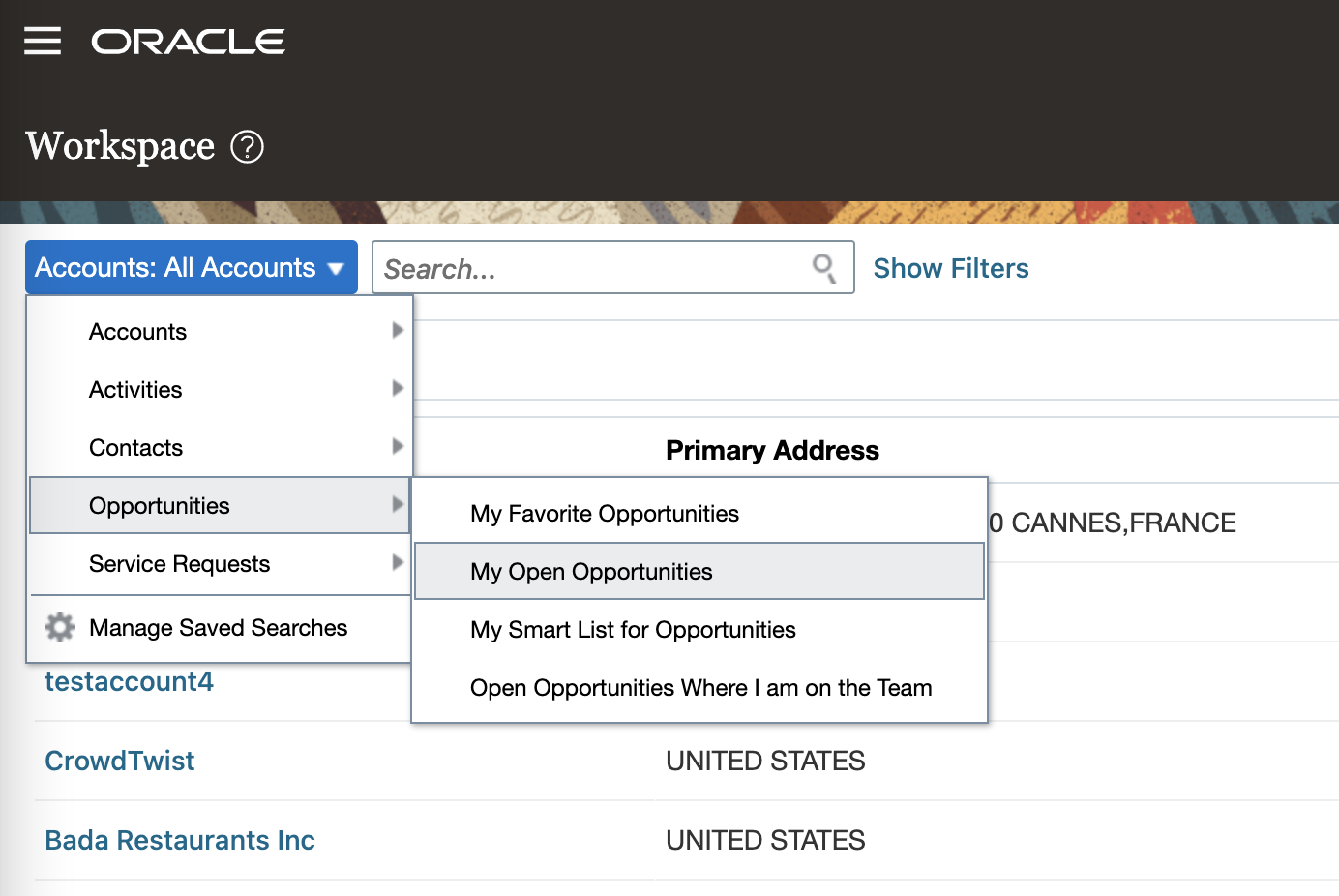
Since we have to create a query for the opportunity object, navigate to My Open Opportunities. This will give us the starting point for creating a saved search.
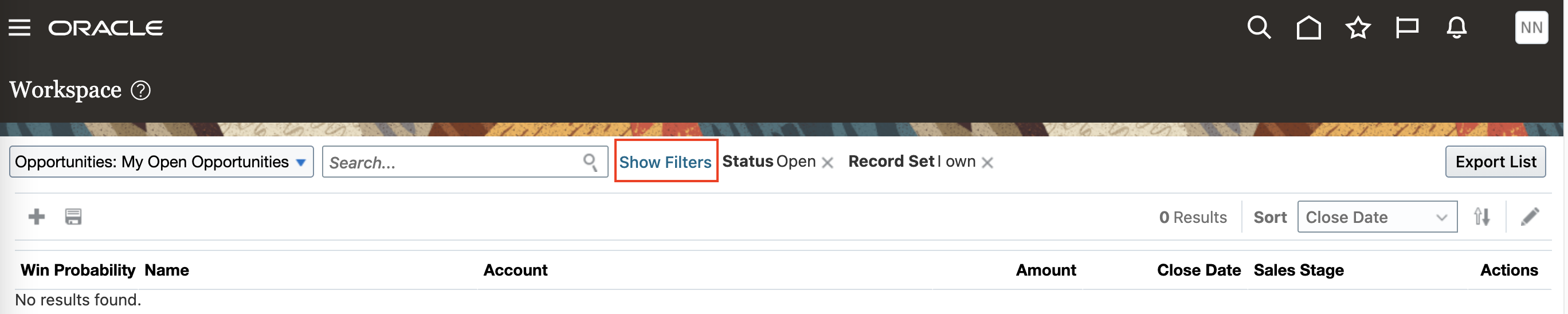
In the My Open Opportunities screen, click on Show Filters to see the currently available filters.
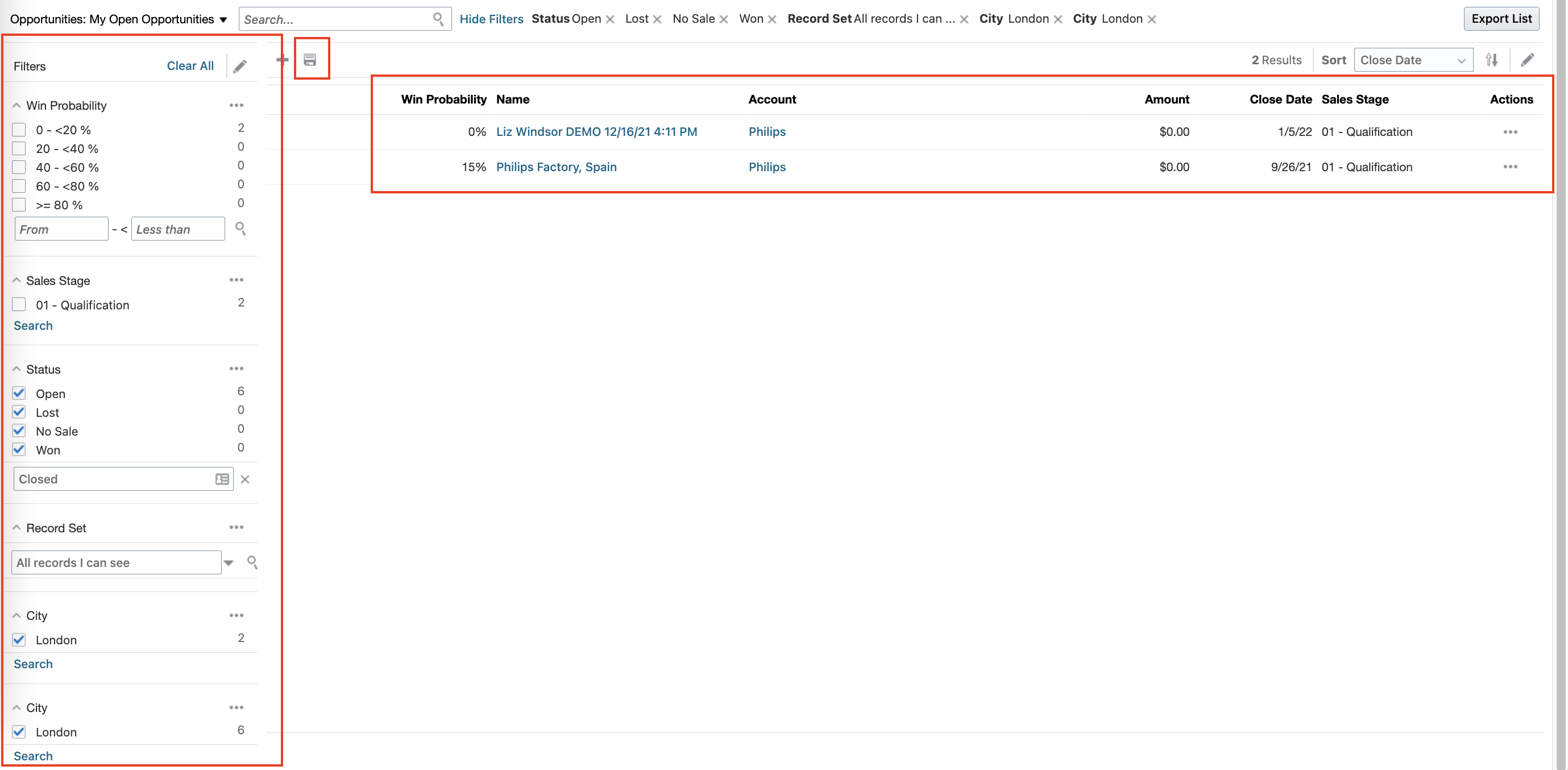
Let me take an opportunity to explain this screen in detail
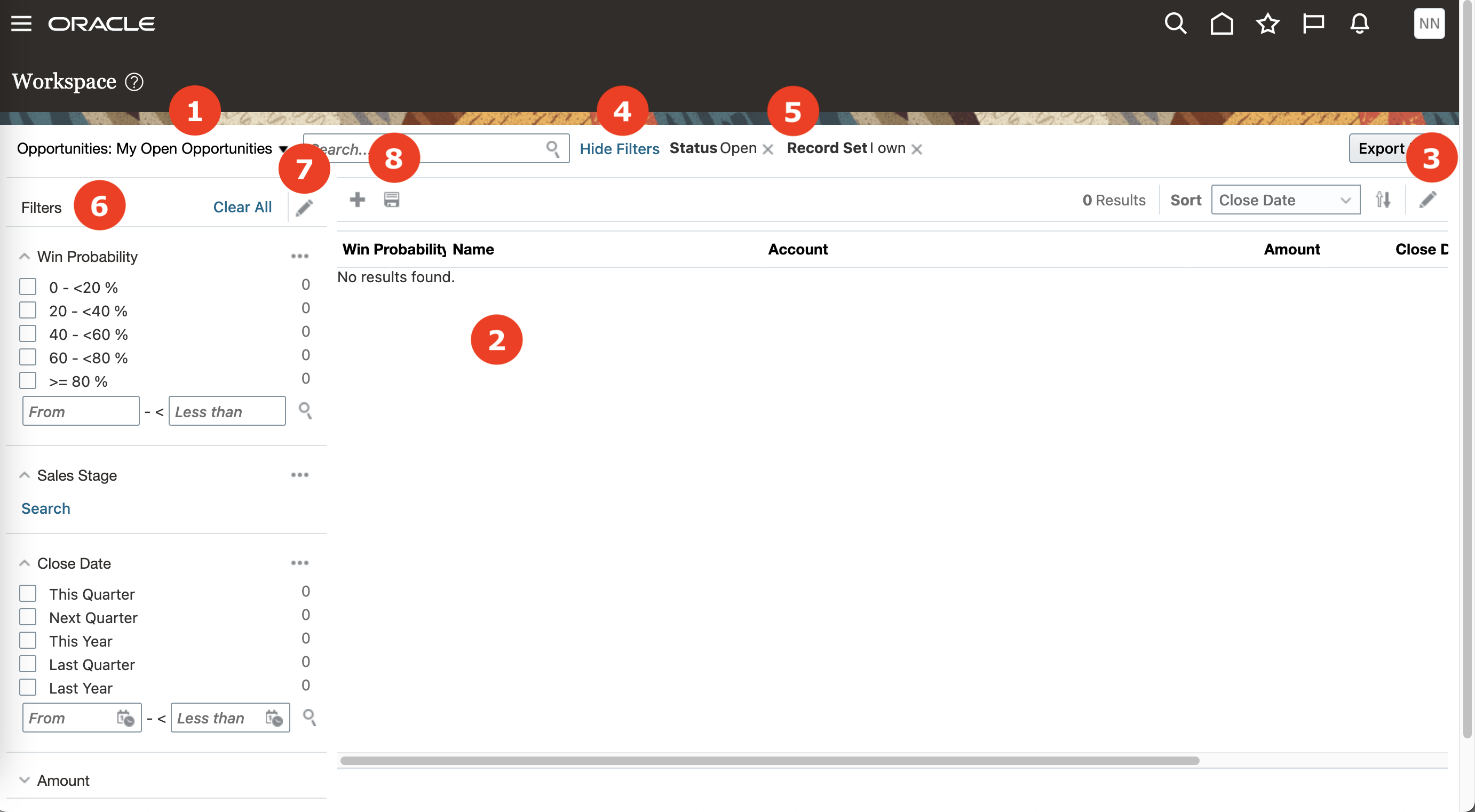
| Number | Explanation |
|---|---|
| 1 | Select the object and saved search you want to display in Workspace |
| 2 | All the records that match the search |
| 3 | Edit the list of fields that are visible in the UI |
| 4 | Show/Hide Filters allows you to create a new query |
| 5 | Shows the Applied Filters |
| 6 | Allows you to set filters based on the conditions you want to query the records |
| 7 | Allows you to edit the list of available filters |
| 8 | Allows you to save the search for use in the future. Saved searches can also be shared with other users |
Click on Edit Filters icon to configure fields you want to query on. Edit Filters screen shows the current selection.
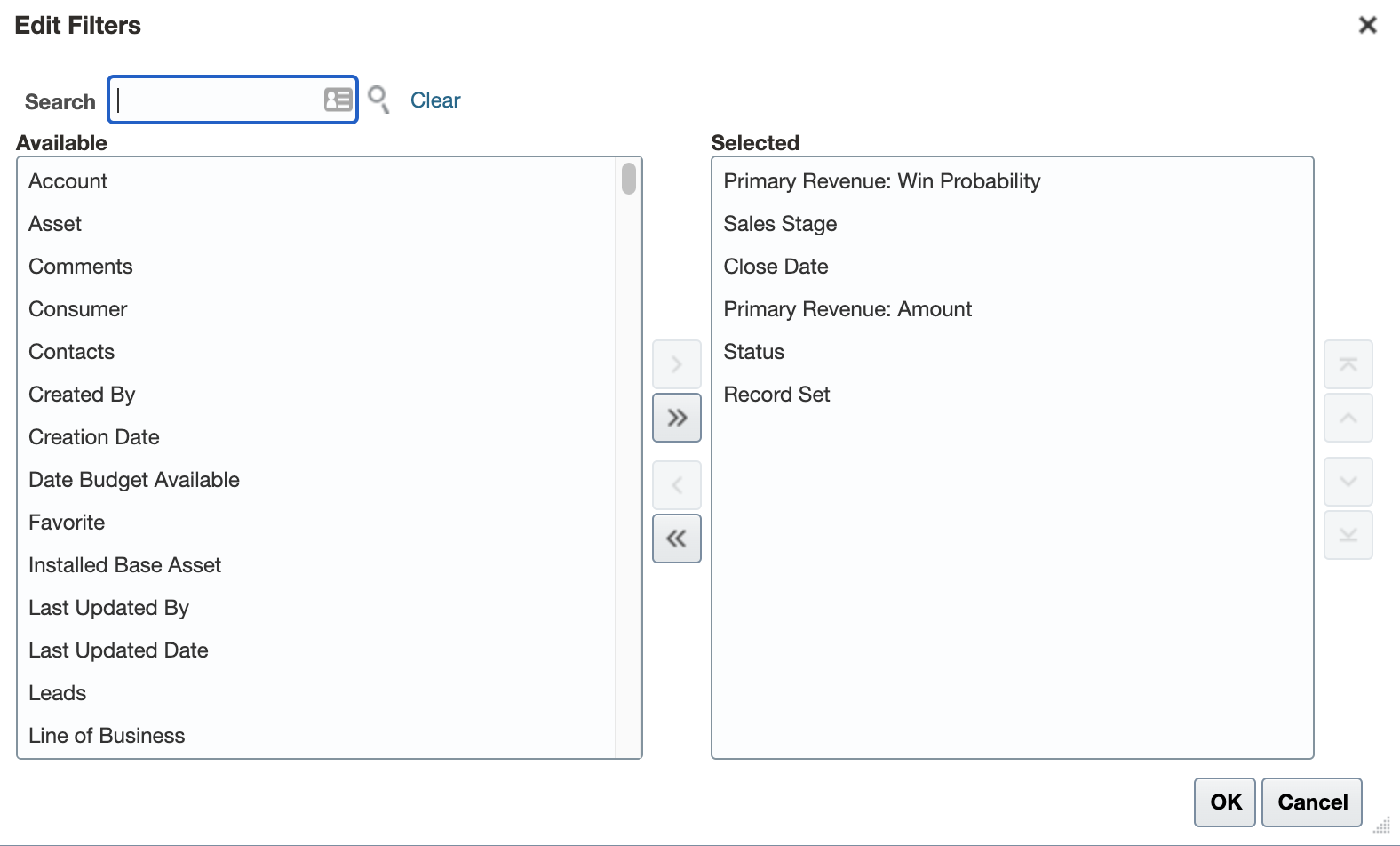
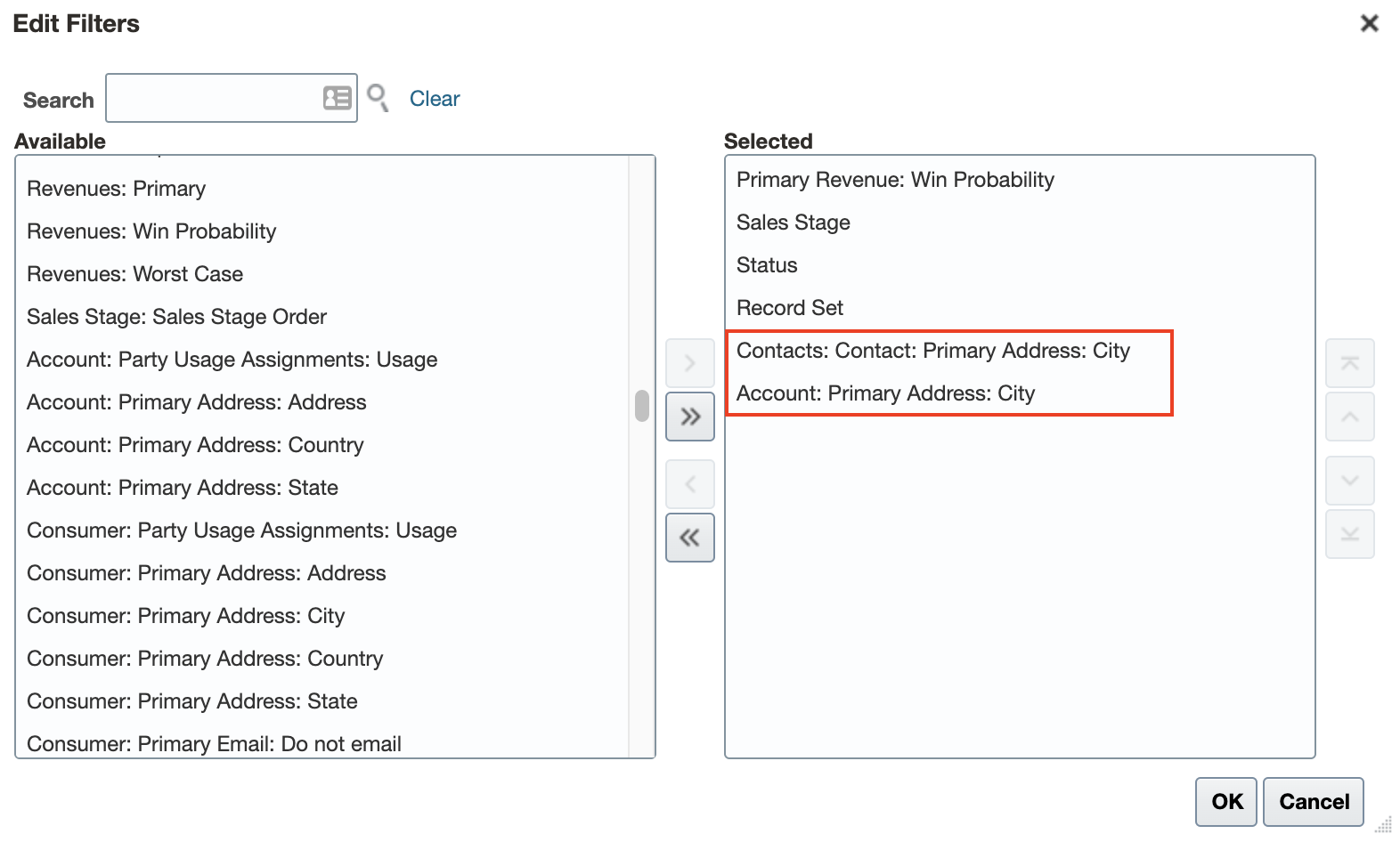
Since only 6 fields are allowed, you can shuttle the fields you don’t need back to left and add the ones you need. Select the following fields:
Add Contacts : Contact : Primary Address : City
Account : Primary Address : City
Now you can select the filter conditions and review the results. Once you are satisfied with your query, click the Save icon.
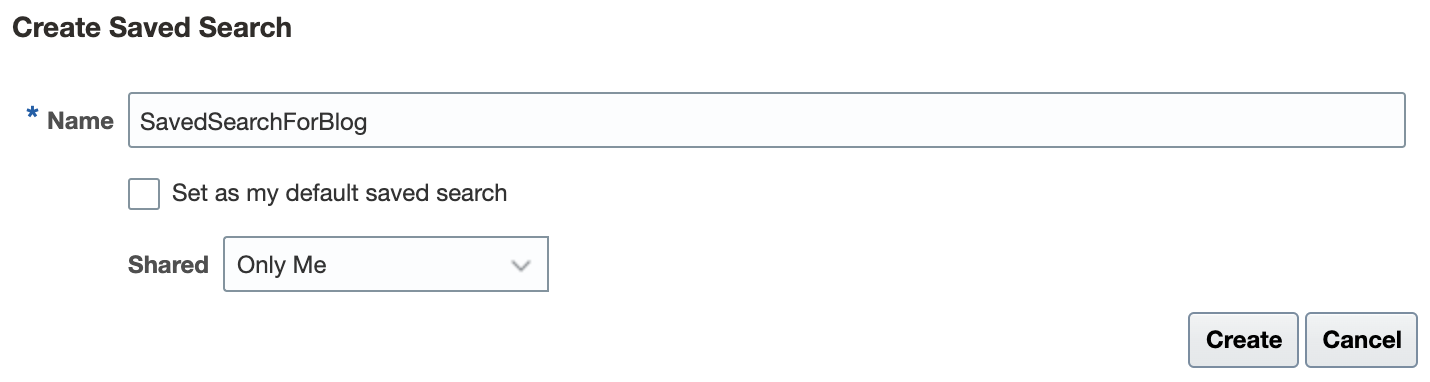
In the Create Saved Search dialog, provide a name, choose whether it will be your default search and choose appropriate sharing condition.
Invoking the saved query using REST APIs
Once the query is saved, it can be retrieved using the following REST API call
URI: /crmRestApi/searchResources/latest/custom-actions/queries?entity=Opportunity&name=SavedSearchForBlog
(Here we are searching by the name we gave to the saved search)
Method: GET
Authorization: Basic or Bearer
You will get the following response:
{
"items": [
{
"_entity": "Opportunity",
"name": "SavedSearchForBlog",
"description": null,
"queryUuid": "889a0c86-8dc6-4bfa-9641-d54c893125b9",
"access": "Private",
"enabled": "Y",
"isDefault": true,
"isUpdatable": true,
"user": "300000030349935",
"userName": "naveen.nahata@oracle.com",
"keywords": null,
"sort": [
{
"attribute": "EffectiveDate",
"direction": "descending"
}
],
"q": {
"op": "$and",
"criteria": [
{
"op": "$in",
"attribute": "StatusCode",
"values": [
"OPEN",
"LOST",
"NO_SALE",
"WON"
]
},
{
"op": "$eq",
"attribute": "RecordSet",
"value": "ORA_ALLOPTIES"
},
{
"op": "$in",
"attribute": "ListOfContacts.PerPartyId.PrimaryAddress.City",
"values": [
"london"
]
},
{
"op": "$in",
"attribute": "CustomerAccount.PrimaryAddress.City",
"values": [
"london"
]
}
]
},
"keywordsFields": [
"Name",
"CustomerAccount",
"SalesStage"
],
"aggregations": {
"PrimaryRevenue.WinProb": {
"ignore": true,
"range": {
"attribute": "PrimaryRevenue.WinProb",
"minBucketCount": 0,
"localize": true,
"ranges": [
{
"key": "0",
"from": 0,
"to": 20
},
{
"key": "1",
"from": 20,
"to": 40
},
{
"key": "2",
"from": 40,
"to": 60
},
{
"key": "3",
"from": 60,
"to": 80
},
{
"key": "4",
"from": 80
}
]
}
},
"SalesStage": {
"ignore": true,
"terms": {
"attribute": "SalesStage",
"maxNumberOfBuckets": 5,
"other": false,
"missing": false,
"localize": true
}
},
"StatusCode": {
"ignore": true,
"terms": {
"attribute": "StatusCode",
"includeTerms": [
"OPEN",
"LOST",
"NO_SALE",
"WON"
],
"maxNumberOfBuckets": 5,
"other": false,
"missing": false,
"localize": true
}
},
"ListOfContacts.PerPartyId.PrimaryAddress.City": {
"ignore": true,
"terms": {
"attribute": "ListOfContacts.PerPartyId.PrimaryAddress.City",
"includeTerms": [
"london"
],
"maxNumberOfBuckets": 5,
"other": false,
"missing": false,
"localize": true
}
},
"CustomerAccount.PrimaryAddress.City": {
"ignore": true,
"terms": {
"attribute": "CustomerAccount.PrimaryAddress.City",
"includeTerms": [
"london"
],
"maxNumberOfBuckets": 5,
"other": false,
"missing": false,
"localize": true
}
}
},
"fields": [
"PrimaryRevenue.WinProb",
"Name",
"CustomerAccount",
"PrimaryRevenue.RevnAmount",
"EffectiveDate",
"SalesStage",
"PrConPartyId.PartyNumber",
"Owner",
"OptyNumber",
"StatusCode",
"OptyId",
"ConsumerAccount.PartyId",
"ConsumerAccount.PartyNumber",
"PrimaryRevenue.RevnAmountCurcyCode"
],
"excludeFields": null,
"applicationData": {
"461e5791-9f15-4cd1-b5cd-19e8480cbce4": {
"isListView": true,
"listLayoutFields": [
"PrimaryRevenue.WinProb",
"Name",
"CustomerAccount",
"PrimaryRevenue.RevnAmount",
"EffectiveDate",
"SalesStage"
],
"listLayoutFieldWidths": [
{
"attribute": "PrimaryRevenue.WinProb",
"width": 104
},
{
"attribute": "Name",
"width": 297
},
{
"attribute": "CustomerAccount",
"width": 398
},
{
"attribute": "PrimaryRevenue.RevnAmount",
"width": 132
},
{
"attribute": "EffectiveDate",
"width": 145
},
{
"attribute": "SalesStage",
"width": 193
},
{
"attribute": "_actions",
"width": 74
}
]
}
},
"highlights": {
"pre": [
"<b>"
],
"post": [
"</b>"
],
"fields": [
"PrimaryRevenue.WinProb",
"Name",
"CustomerAccount",
"PrimaryRevenue.RevnAmount",
"EffectiveDate",
"SalesStage"
]
},
"links": [
{
"rel": "self",
"href": "https://<pod_name>.fa.us6.oraclecloud.com:443/crmRestApi/searchResources/latest/custom-actions/queries/889a0c86-8dc6-4bfa-9641-d54c893125b9?metaModelUuid=1e4d94f2-f92a-42ab-aabe-53a310987510&entity=Opportunity",
"kind": "item",
"name": "self"
},
{
"rel": "canonical",
"href": "https://<pod_name>.fa.us6.oraclecloud.com:443/crmRestApi/searchResources/latest/custom-actions/queries/889a0c86-8dc6-4bfa-9641-d54c893125b9?metaModelUuid=1e4d94f2-f92a-42ab-aabe-53a310987510&entity=Opportunity",
"kind": "item",
"name": "canonical"
},
{
"rel": "parent",
"href": "https://<pod_name>.fa.us6.oraclecloud.com:443/crmRestApi/searchResources/latest/custom-actions/queries?metaModelUuid=1e4d94f2-f92a-42ab-aabe-53a310987510&entity=Opportunity",
"kind": "collection",
"name": "parent"
},
{
"rel": "child",
"href": "https://<pod_name>.fa.us6.oraclecloud.com:443/crmRestApi/searchResources/latest/custom-actions/queries/889a0c86-8dc6-4bfa-9641-d54c893125b9/results?metaModelUuid=1e4d94f2-f92a-42ab-aabe-53a310987510&entity=Opportunity",
"kind": "collection",
"name": "results"
}
]
}
],
"totalResults": 1,
"count": 1,
"hasMore": false,
"limit": 10,
"offset": 0,
"links": [
{
"rel": "self",
"href": "https://<pod_name>.fa.us6.oraclecloud.com:443/crmRestApi/searchResources/latest/custom-actions/queries?name=SavedSearchForBlog&entity=Opportunity&metaModelUuid=1e4d94f2-f92a-42ab-aabe-53a310987510",
"kind": "collection",
"name": "self"
},
{
"rel": "canonical",
"href": "https://<pod_name>.fa.us6.oraclecloud.com:443/crmRestApi/searchResources/latest/custom-actions/queries?name=SavedSearchForBlog&entity=Opportunity&metaModelUuid=1e4d94f2-f92a-42ab-aabe-53a310987510",
"kind": "collection",
"name": "canonical"
},
{
"rel": "parent",
"href": "https://<pod_name>.fa.us6.oraclecloud.com:443/crmRestApi/searchResources/latest",
"kind": "item",
"name": "parent"
}
]
}
Using the saved query
Now that you have access to the saved query, there are 2 ways you can run this query from a REST call.
1. You can pick up the query using the “q” field (highlighted in bold) and substitute it in your payload.
2. You can run the saved search as it is, by making the following call:
URI: /crmRestApi/searchResources/latest/custom-actions/queries
Headers:
Authorization: Bearer or Basic
Content-Type: application/json
Preference: Transient
Payload:
{ "entity":"Opportunity",

"copiedFrom":"https://<pod_name>.fa.us6.oraclecloud.com:443/crmRestApi/elasticResources/latest/custom-actions/queries/<queryUuid>",

"limit":10

}