

Apache access logs provide valuable information about who is accessing a website, what they are accessing, and how the server responds to it. In this blog, we will look at how Apache Access Logs are ingested into OCI Logging Analytics.
Additionally, we will take a look at how to search through the log events for specific IPs and labels, save the search, post it in Monitoring service and set up alerts.
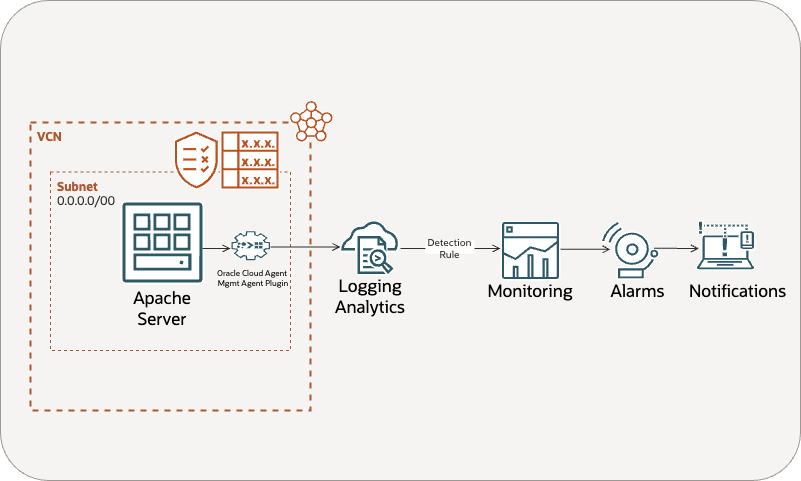
Ingesting Apache Access Logs in Logging Analytics
Logging Analytics provide both an Apache Access Log Source and Apache HTTP Access Log Format Parser. We will discuss how to get Apache access logs from an Apache server running on an OCI compute instance.
1. Enable Management Agent
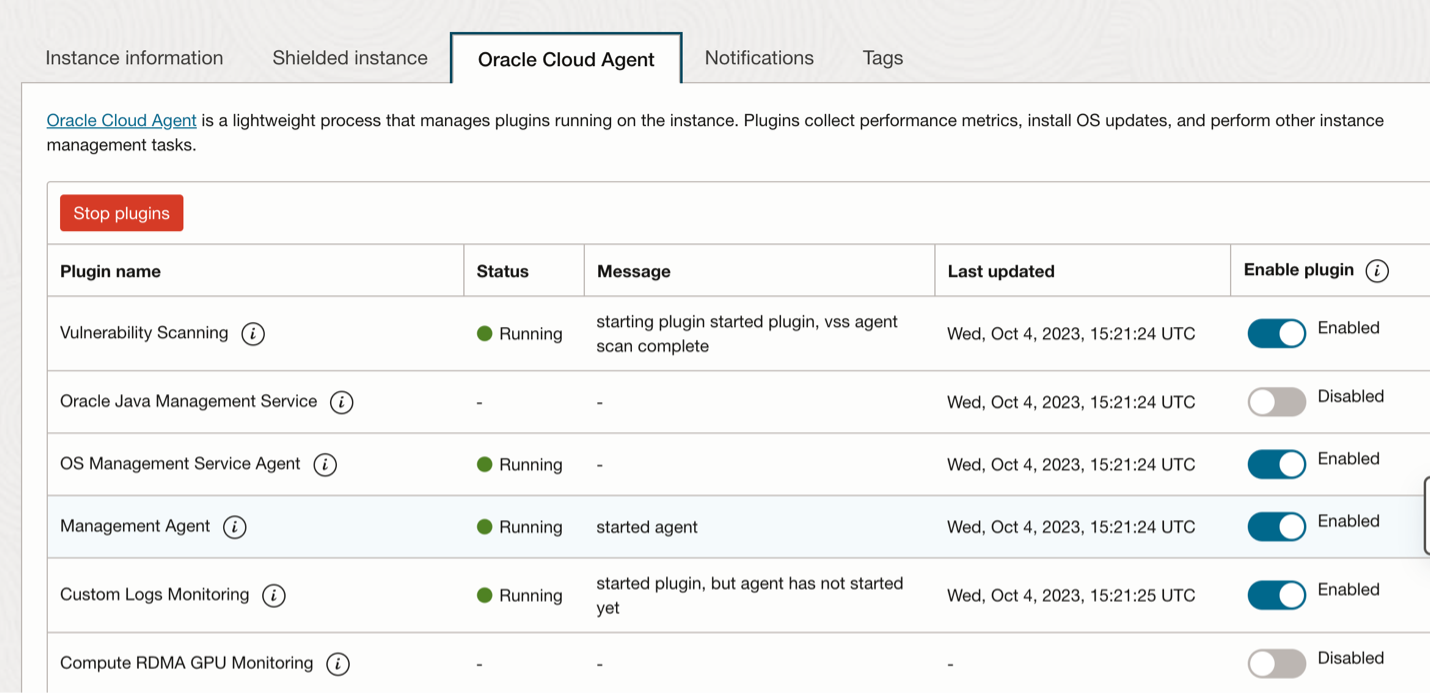
- On OCI compute instance, Management Agent is responsible for bringing logs from the instance to logging analytics.
- Management agent plugin is available under the Oracle Cloud Agent tab. Once a compute is successfully running an Apache server, make sure the management agent plugin is enabled.
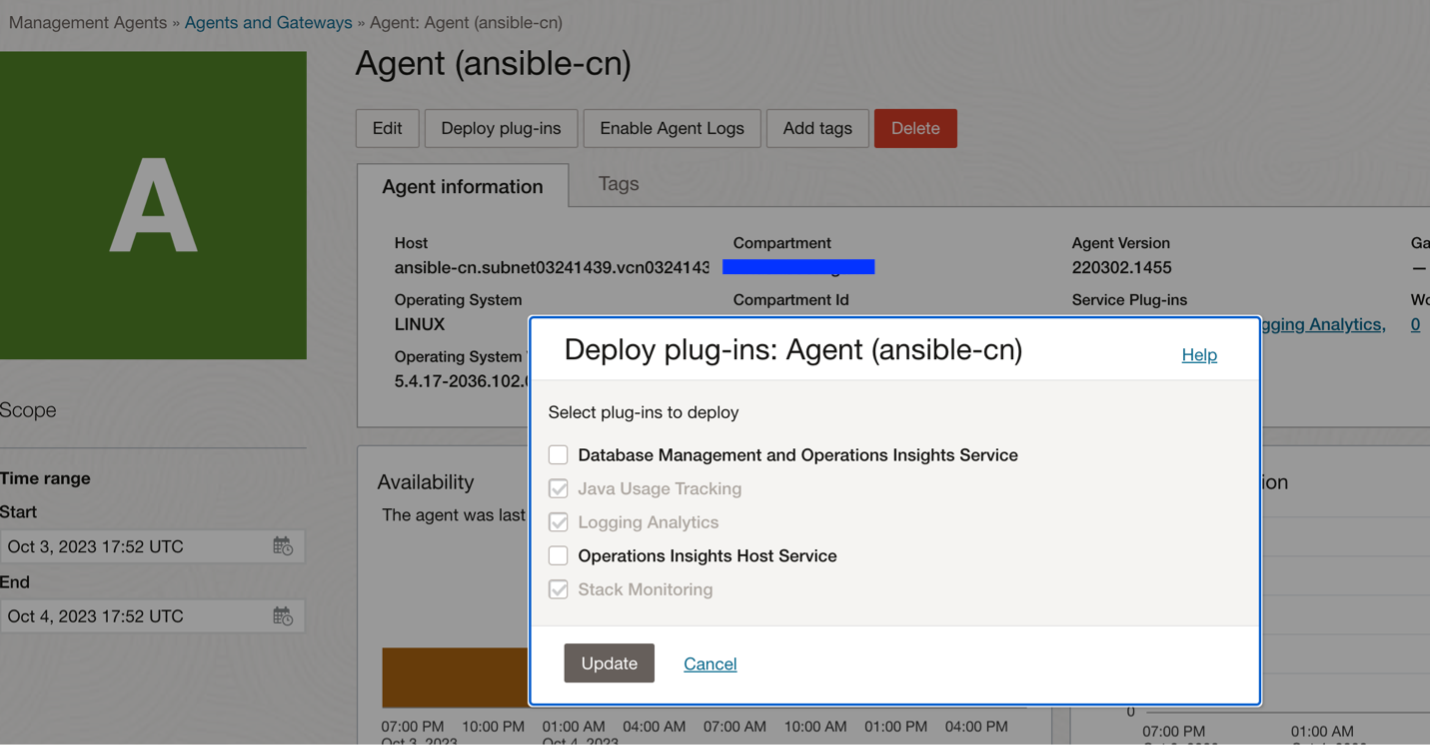
2. Enable Logging Analytics Plug-in:
- Navigate to Observability & Management -> Management Agent -> Agents and Gateways. In the list of agents, select the agent associated with your Apache compute instance and enable Logging Analytics plug-in.
3. Create Entity:
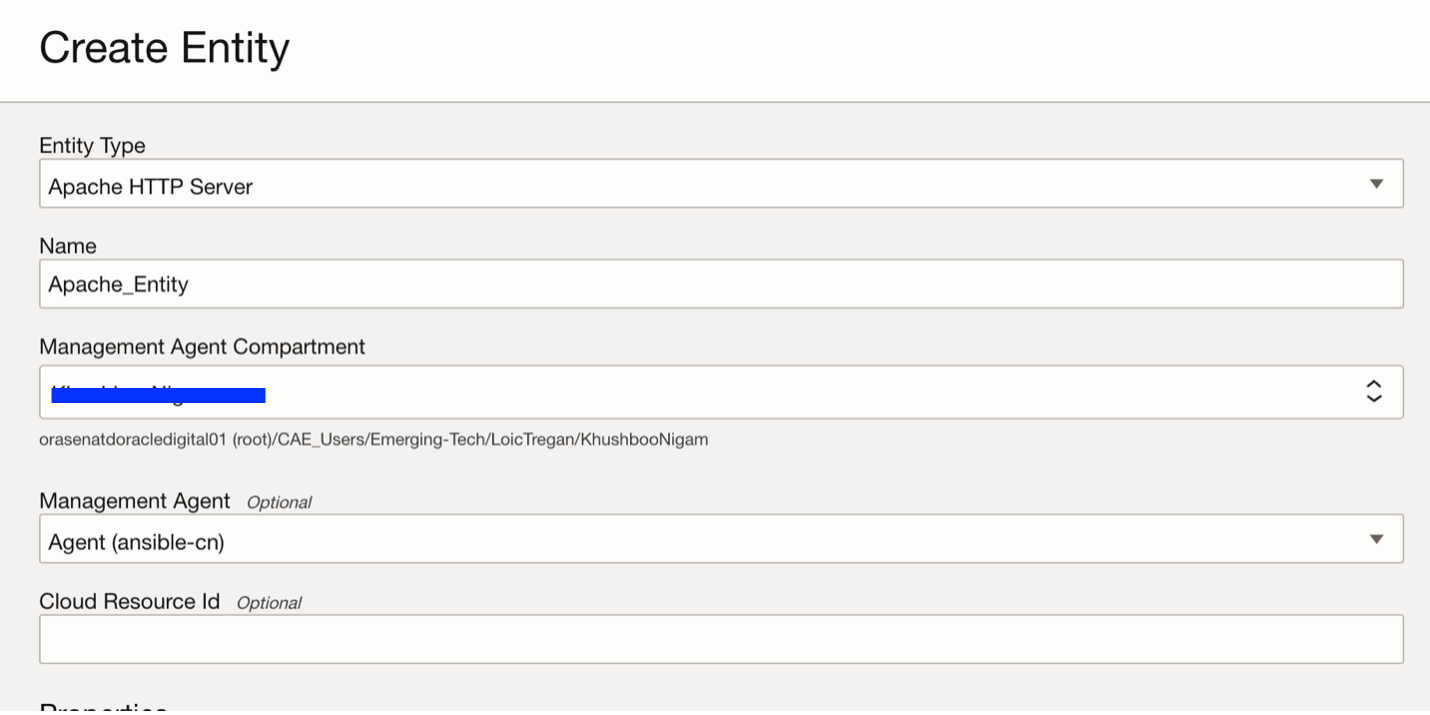
- Navigate to Observability & Management -> Logging Analytics -> Administrations -> Entities. Select Apache HTTP Server as the Entity type.
- Provide a name and select management agent associated with the instance.
4. Entity-Source Association:
-
Log sources define where the log files are located, how to collect them, how to parse them using Parsers, enrich using Labels.
-
Navigate to Observability & Management -> Logging Analytics -> Administrations -> Sources. Select Apache Server Access Logs, go to Unassociated Entities.
-
Select the entity created in the step above and associate it with this log source. Select a log group while creating the association.
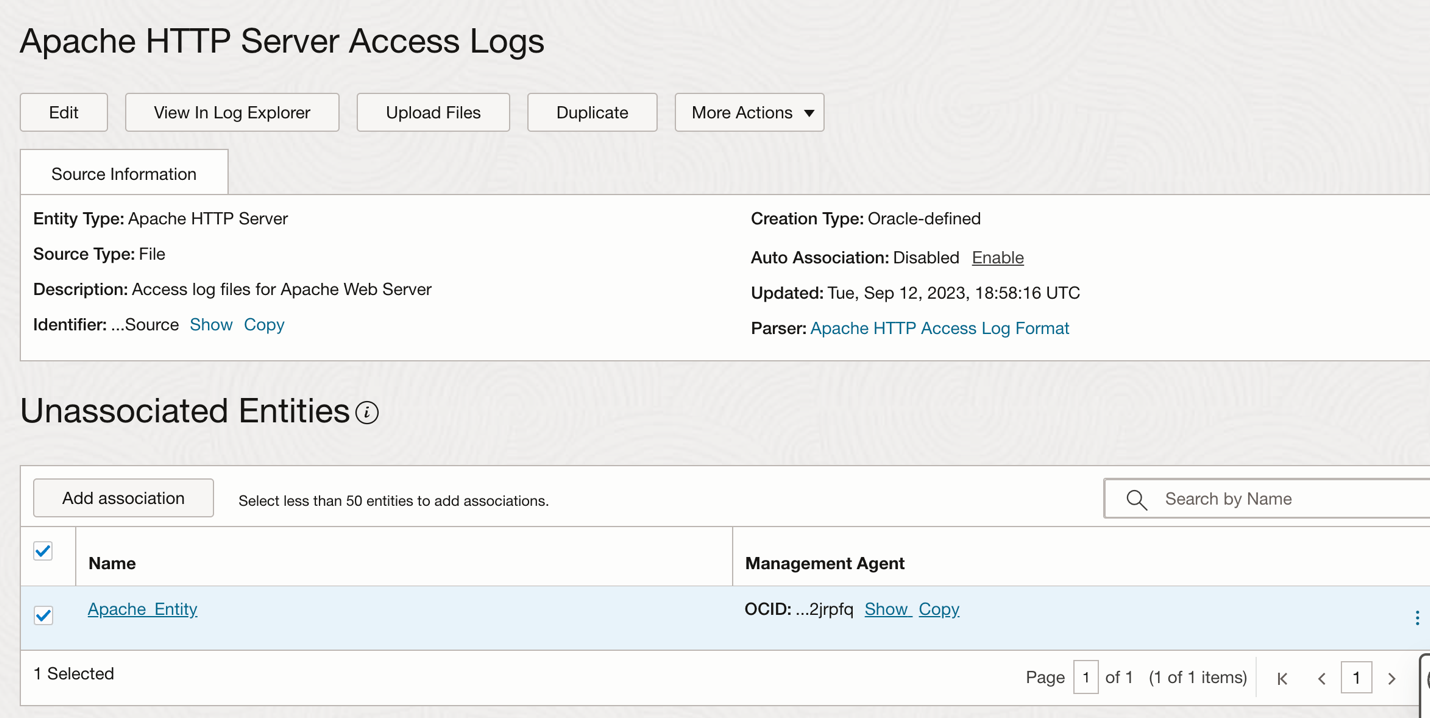
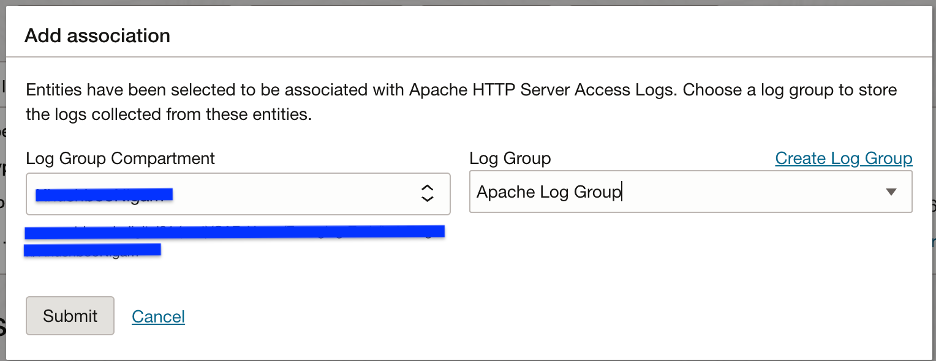
After the association is successful, click on “View in Log Explorer” to see the logs flowing in from the Apache server.
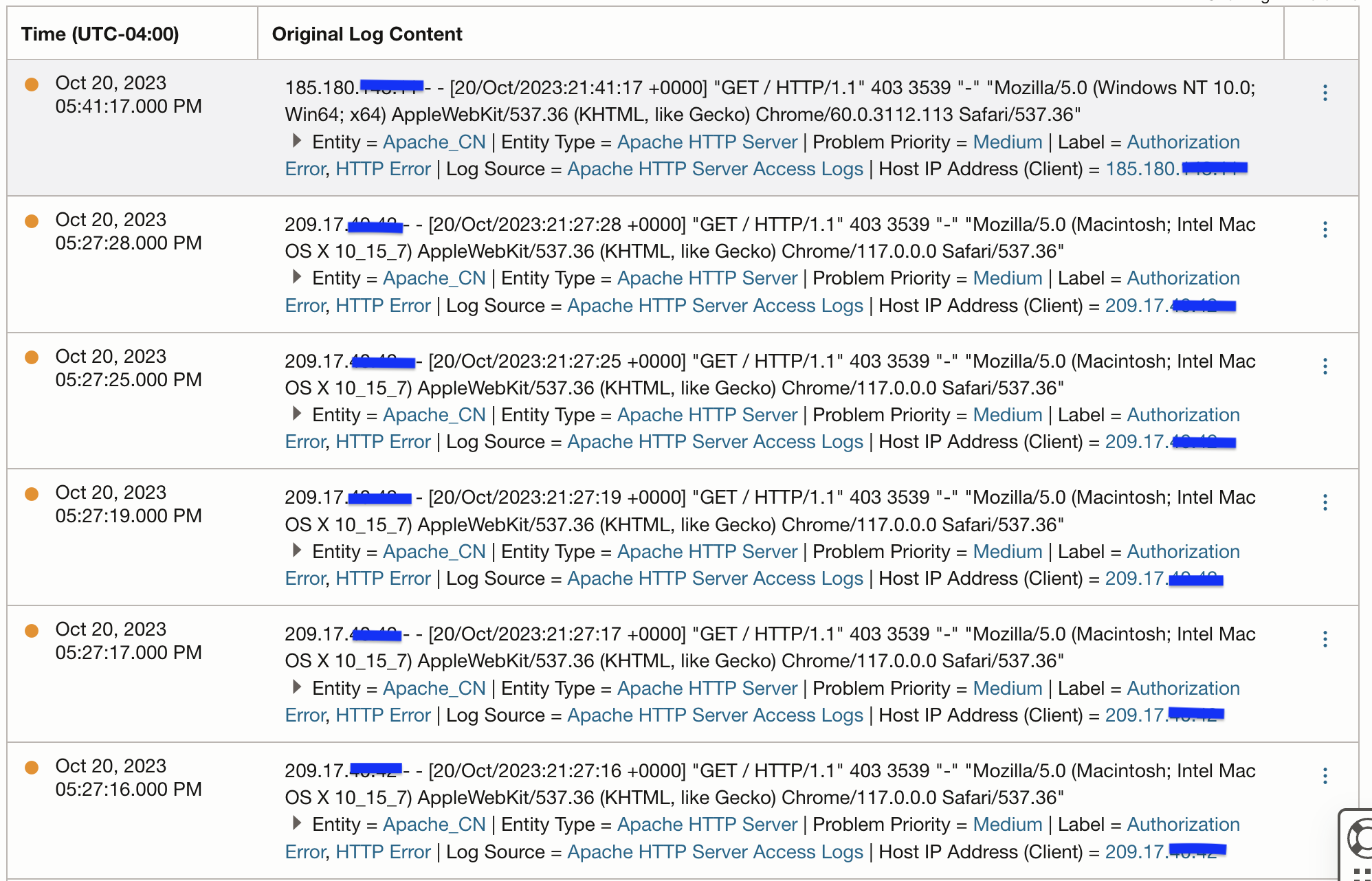
Search through logs and set up alerts
1. Search using IPs:
- Use the Fields section to search through all the access logs based on criteria such as a particular Host IP address.
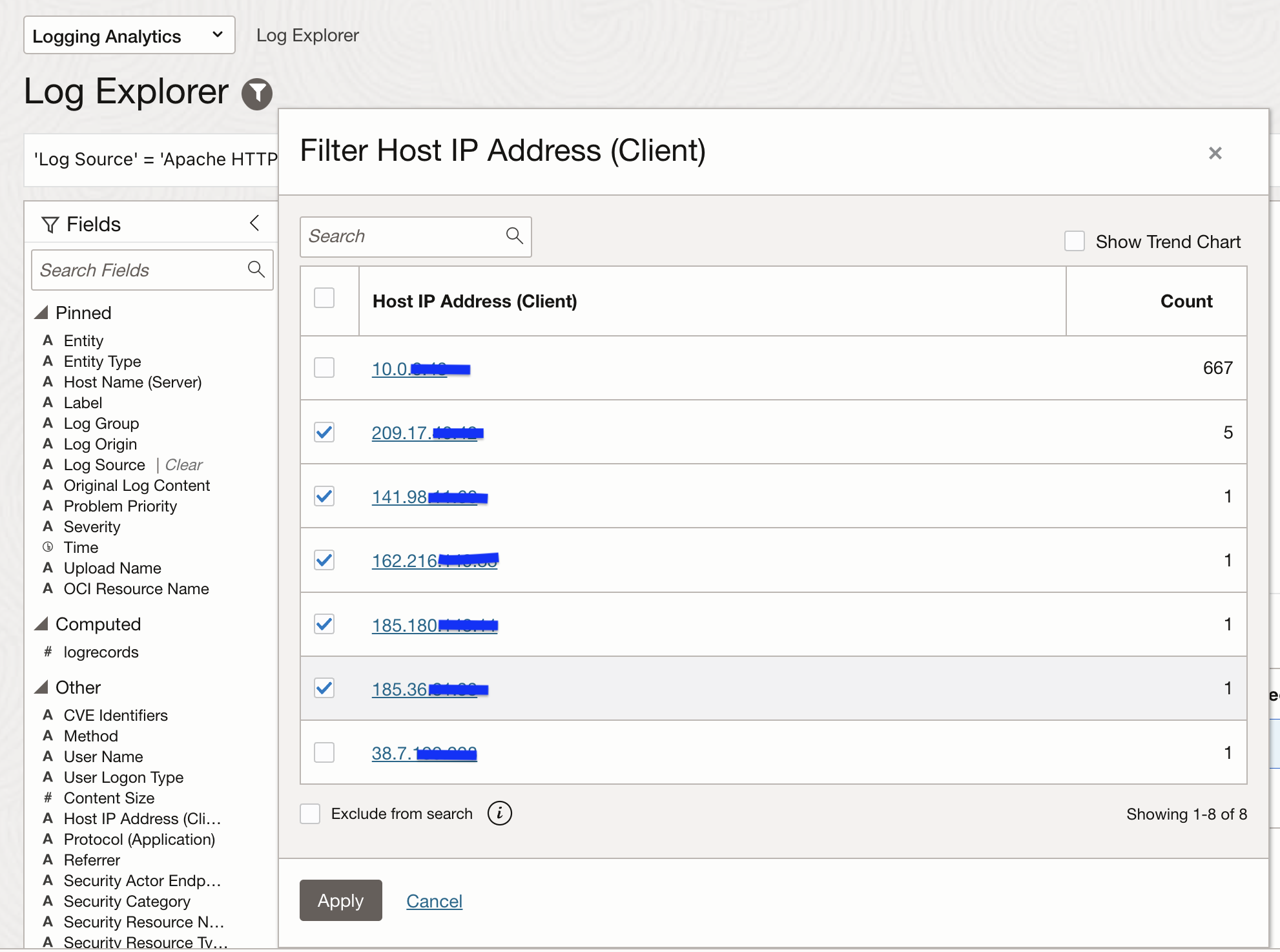
- This is the how the corresponding search query will look

2. Search using Labels:
-
Apache logs can be filtered based on the Label such as Authorization Error
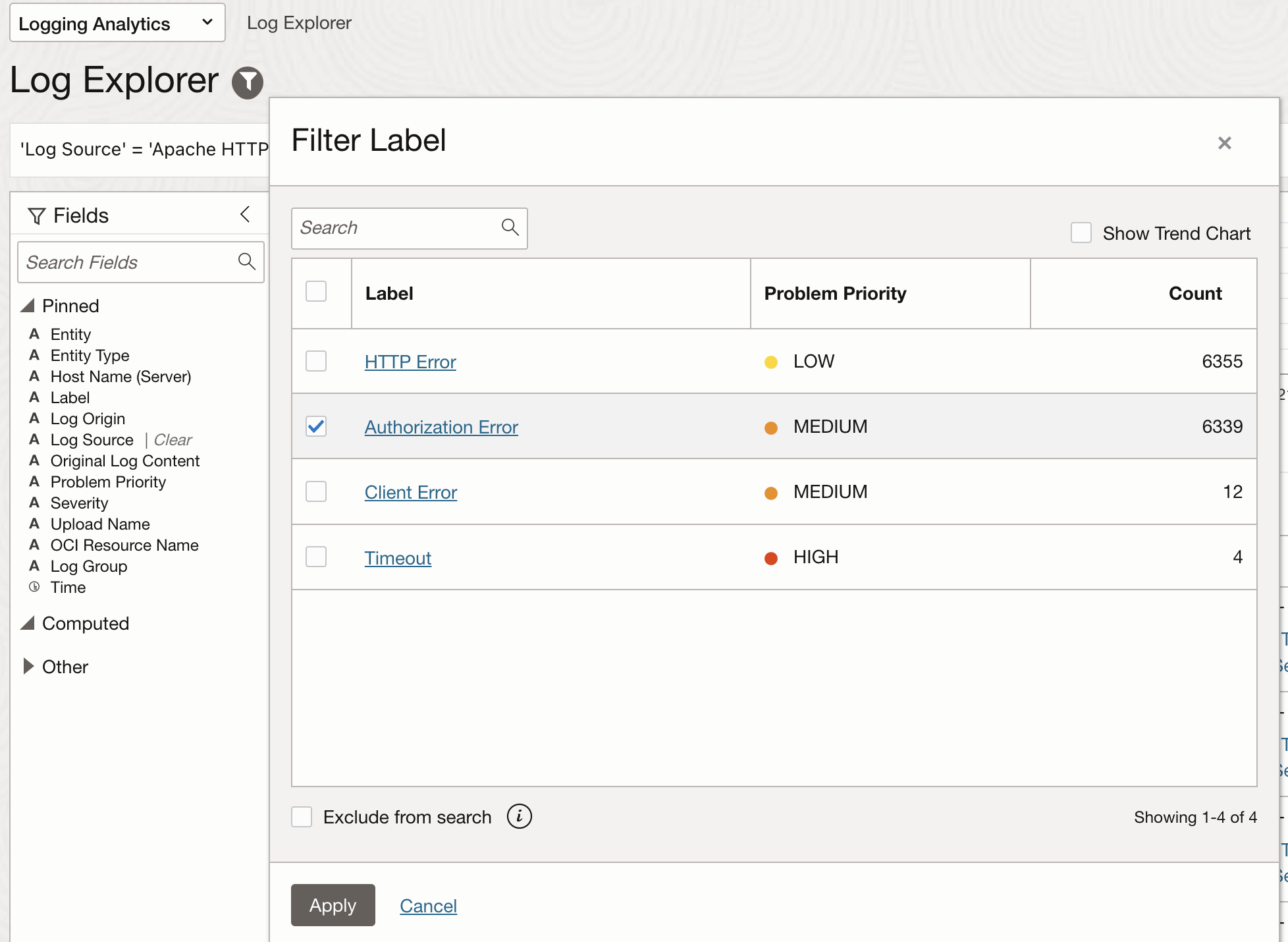
- This is how the corresponding query look like

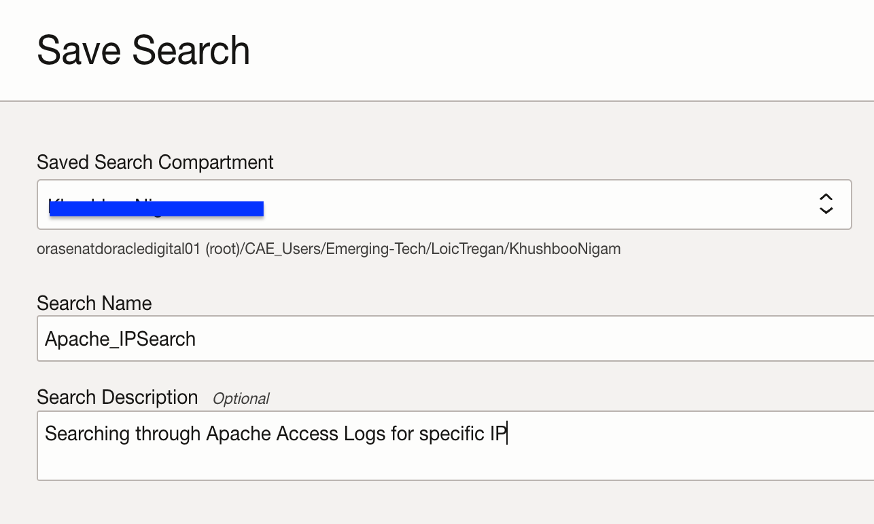
3. Save Search:
- Click on Actions and Save as to save this search. It will start appearing in Saved Searches in the Administration section.
4. Create Detection Rule:
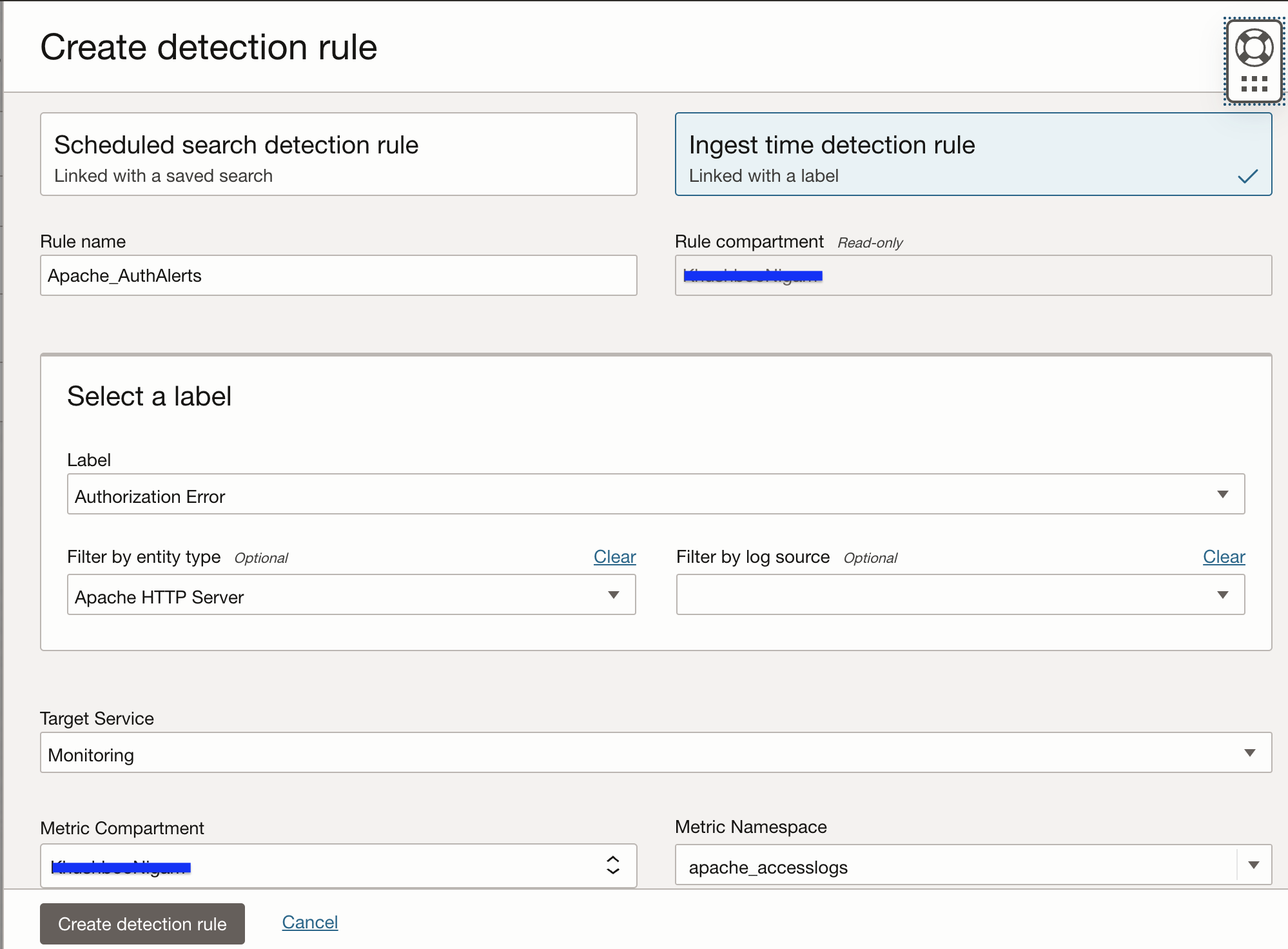
- Navigate to Administration -> Create Detection Rule -> Ingest time detection rule
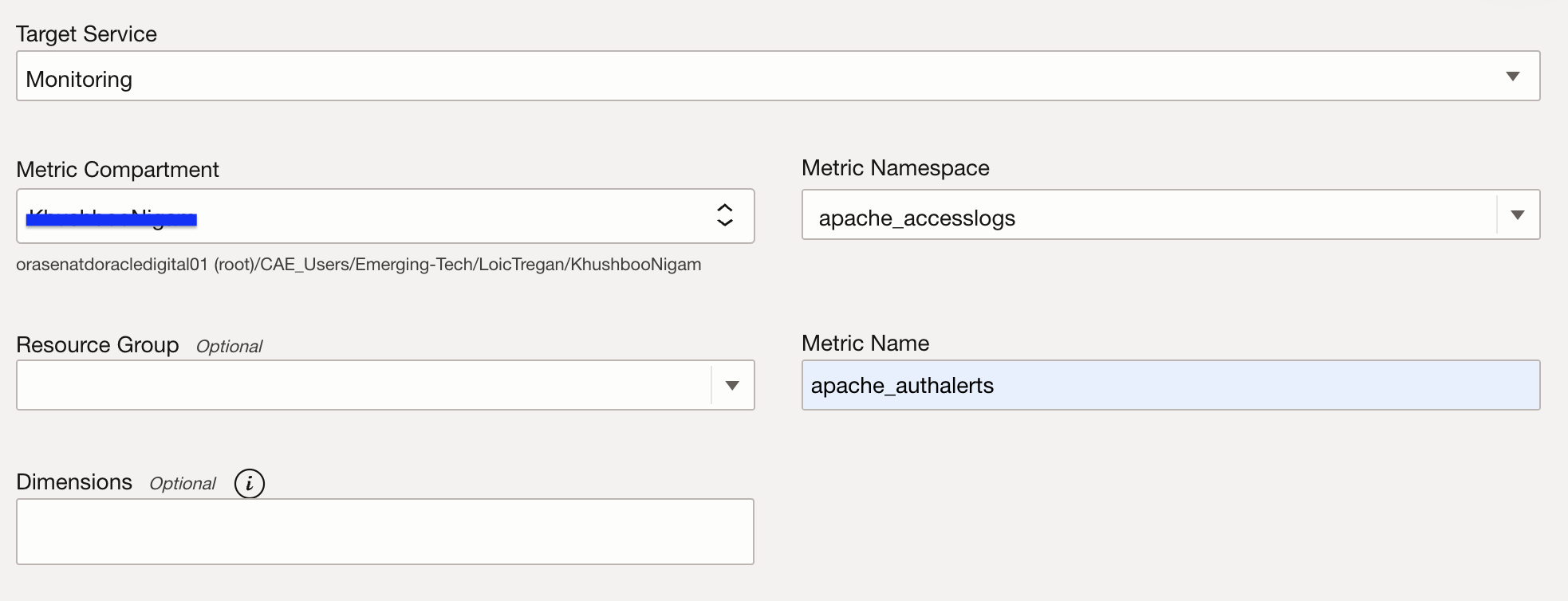
- Target service is set to Monitoring so that the results of the search could be posted in this service. Enter a Metric Namespace and Metric Name related to this search.
5. Exploring Metrics:
- Navigate to Observability & Management -> Monitoring -> Metrics Explorer and select the Metric namespace and corresponding metric name to see this data in Monitoring service.
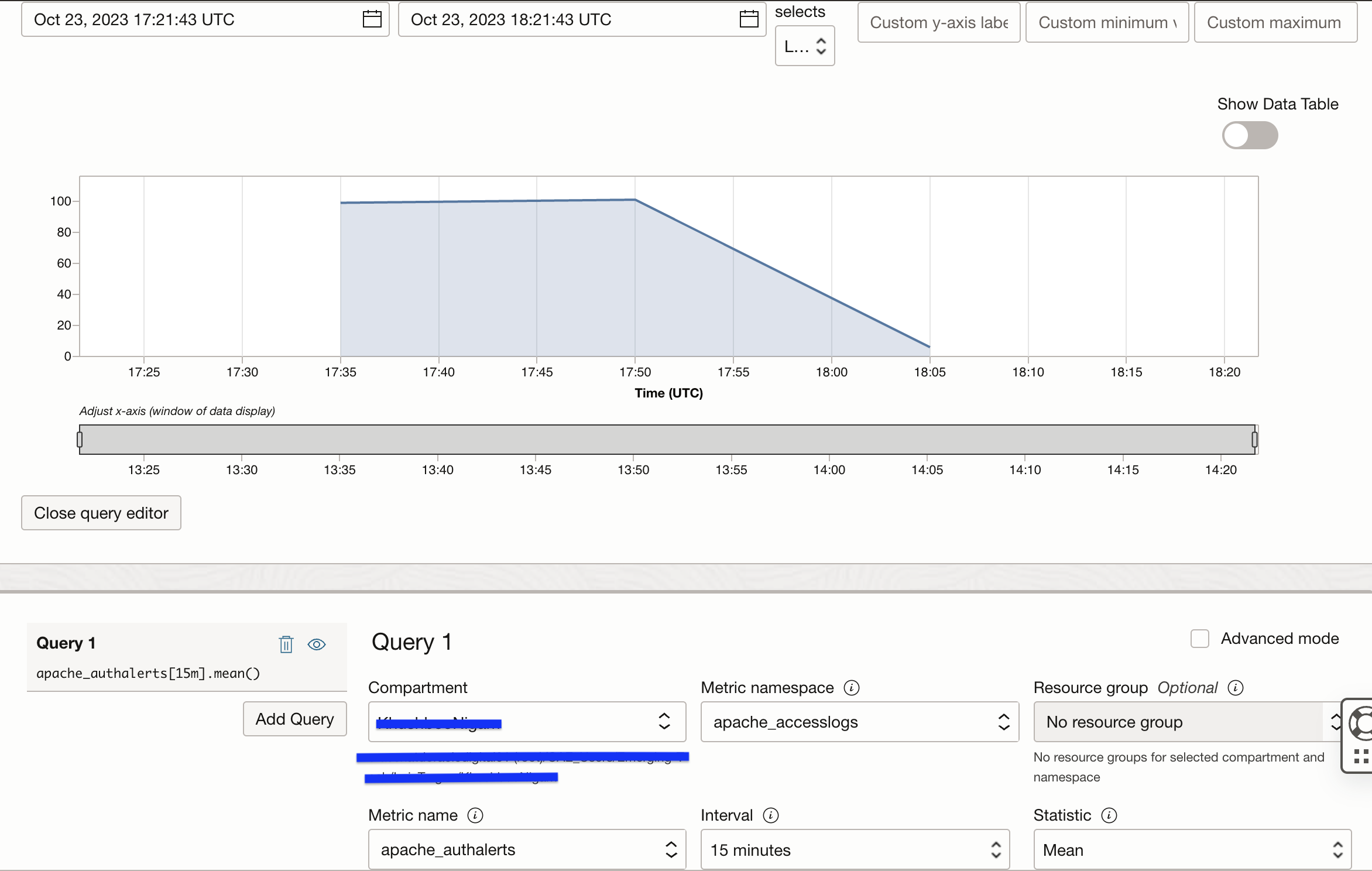
6. Create Alarm:
- You can also choose to create an Alarm on this metric so that you can get alerts when an authorization error is detected.
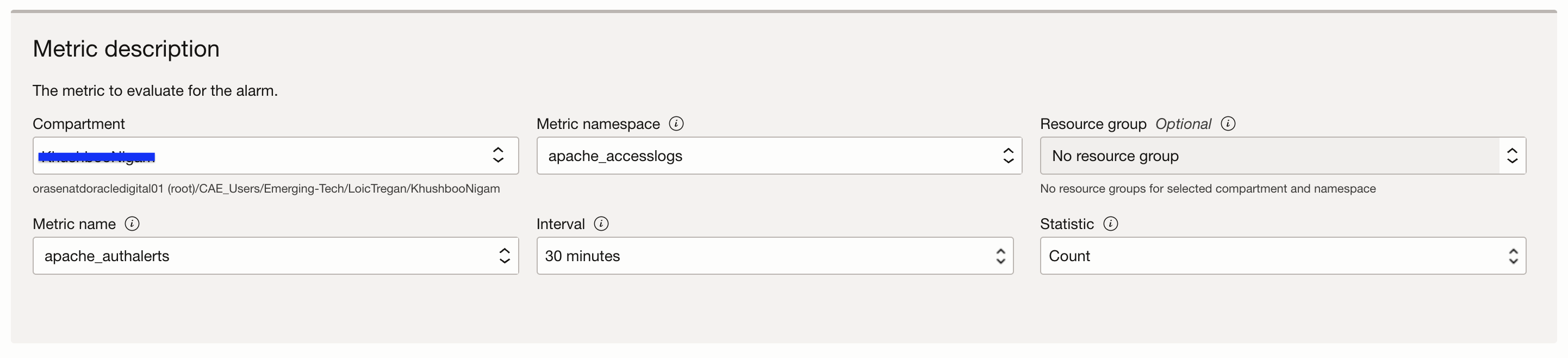
- You can navigate to Observability & Management -> Monitoring -> Alarm Status to see if the Alarm is in Firing state. That is also when you start receiving Notifications on your choice of Subscription.
-
You can choose to send alerts to your email id, phone number, Slack, PagerDuty or to another platform using custom HTTP URL


Conclusion
This blog provides all necessary steps to take advantage of OCI Logging Analytics to monitor Apache Server logs, search for important information on a periodic basis and also send alerts based on this information. Sign up for an Oracle Cloud Infrastructure free trial account today to try out new Oracle Cloud Infrastructure features!