
Introduction
There are a range of options to protect your Fusion Application instance beyond the standard configuration. This example shows one option how to restrict the access to the Fusion Applications instance to a specific range of IP addresses. Based on projects in the recent past I am focusing on the control of REST APIs, but the configuration is transferable to most parts of Fusion Applications. Specific ranges of IPs could be for example for specific cloud services and integrations or VPN concentrator, that all employees must connect to prior to accessing the application. Please note that this option has no impact on Akamai which continues to operate as normal.
Default Configuration
By default, LBAC is not enabled and everyone with the correct credentials can access the REST API Services as well as the FA GUI. In this example I am using Postman to access the REST API https://INSTANCE.fa.DC.oraclecloud.com/hcmRestApi/resources/latest/bcCandidateDetails (Details here: https://docs.oracle.com/en/cloud/saas/human-resources/22b/farws/op-bccandidatedetails-get.html)
Simply fill in the URL with your instance details and the desired user to the Authorization tab. For this example, I am using an account that already has the IT Security Manager role any other user with access to the REST Service will work as well.
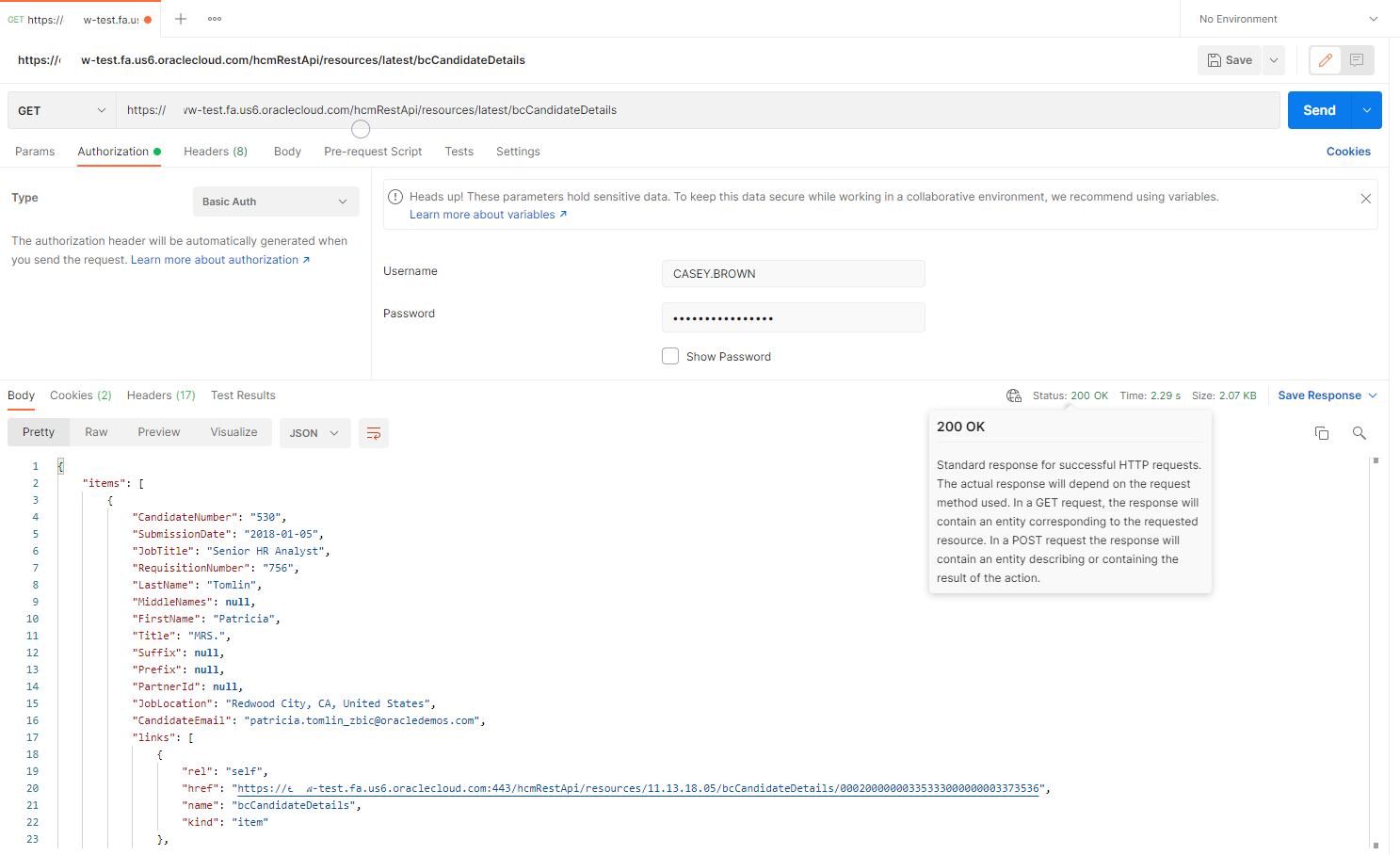
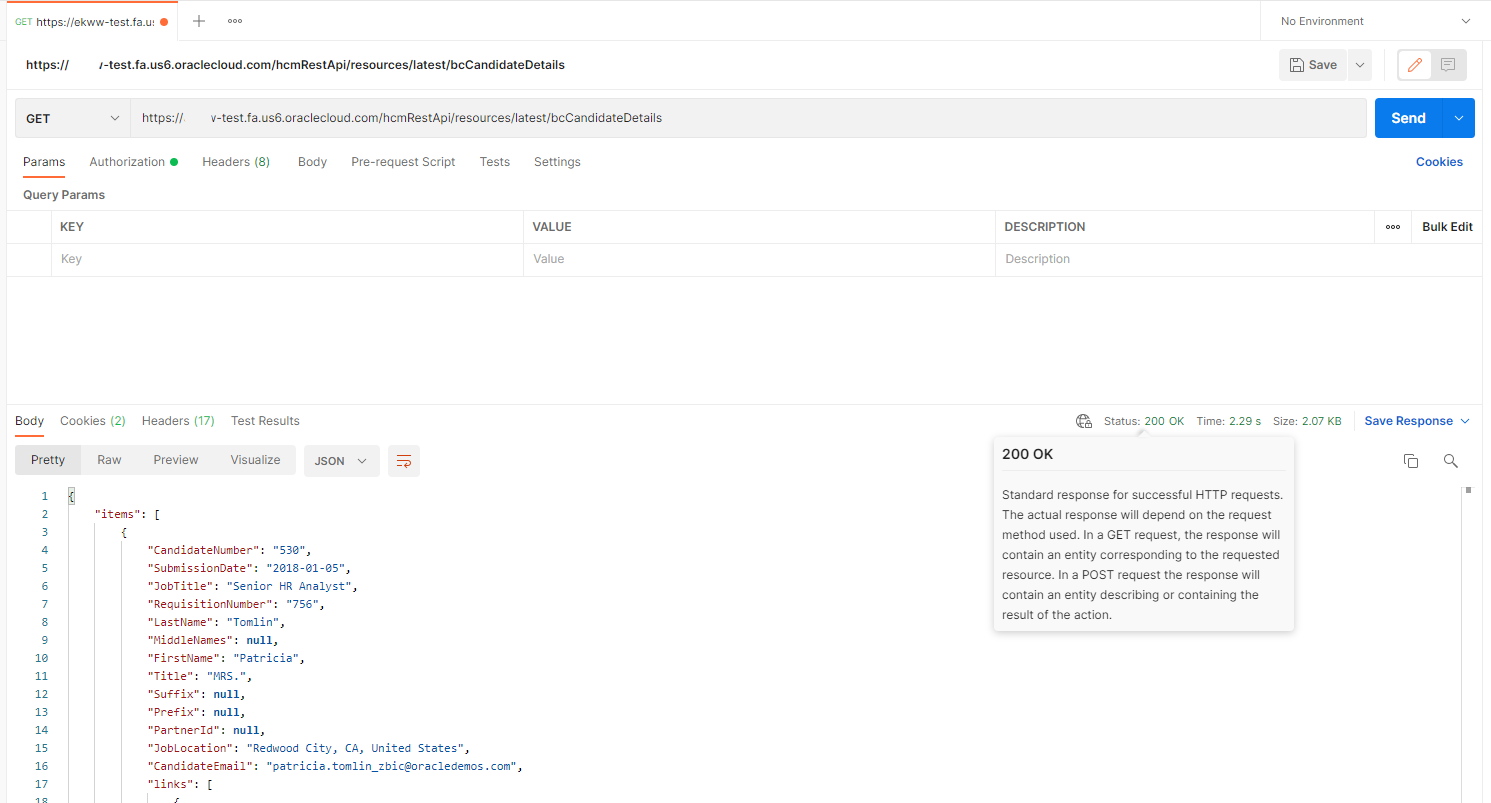
This REST Service simply gets details about all candidates in the system as shown below. Note that the status is returning 200 OK.
LBAC Configuration
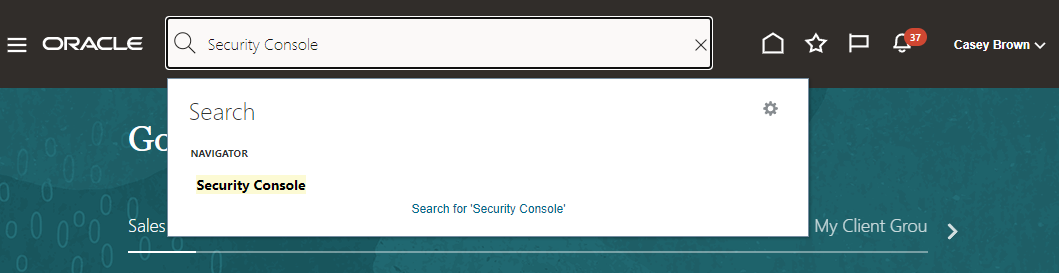
The LBAC Configuration is straight forward – Login to your Fusion Application Instance with a user account that has the IT Security Manager (ORA_FND_IT_SECURITY_MANAGER_JOB) role. Click Navigator > Tools > Security Console or type Security Console into the Search Bar.
In the Security Console click Administration and switch to the Location Based Access Tab and enter the IP addresses and IP address ranges that are supposed to access the system, enable the checkbox, and hit save. Make sure to add your own addresses to avoid a lock out – see below. In this example I am simply adding my own IP Address here. Make sure that the displayed IP Address is correct and hasn’t changed using for example a what’s my IP service.
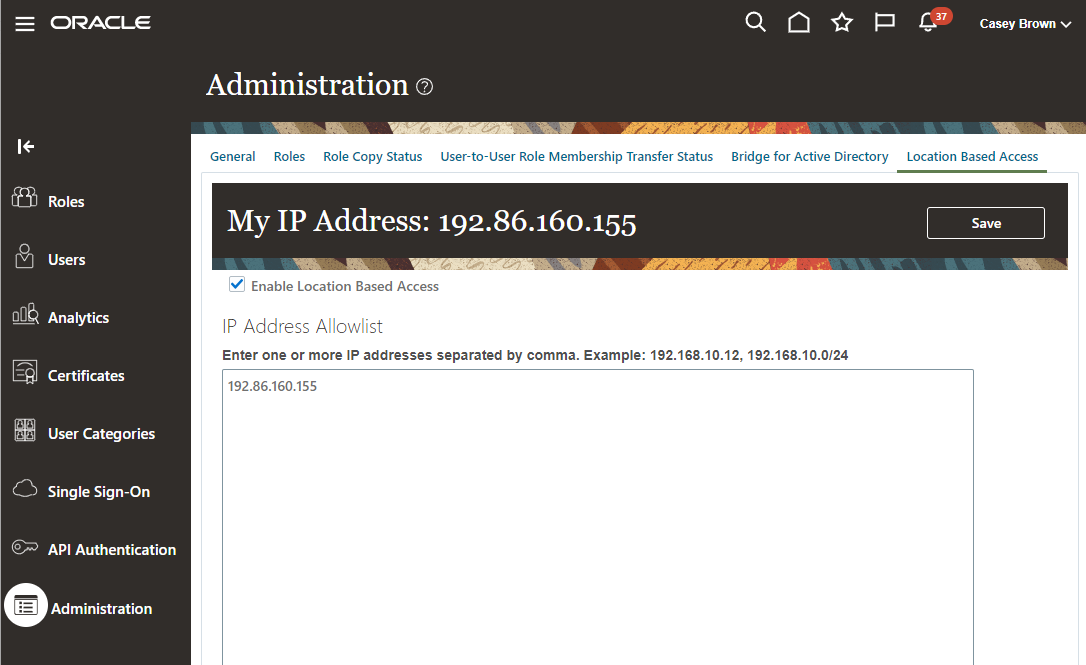
That’s all that’s required to enable LBAC to restrict access to a single IP, but please make sure that you don’t lock yourself out – see below.
When configuring LBAC it is important to consider all applications and services that are accessing the Fusion Applications instance, this can include but is not limited to SFTP Services, Integration Services, API Gateways, VB Instances etc.
Postman Testing
The next step requires a change of IP Address for your workstation or simply try to access Fusion from a separate workstation with a different IP. I simply connected myself to a VPN, which changed my IP.
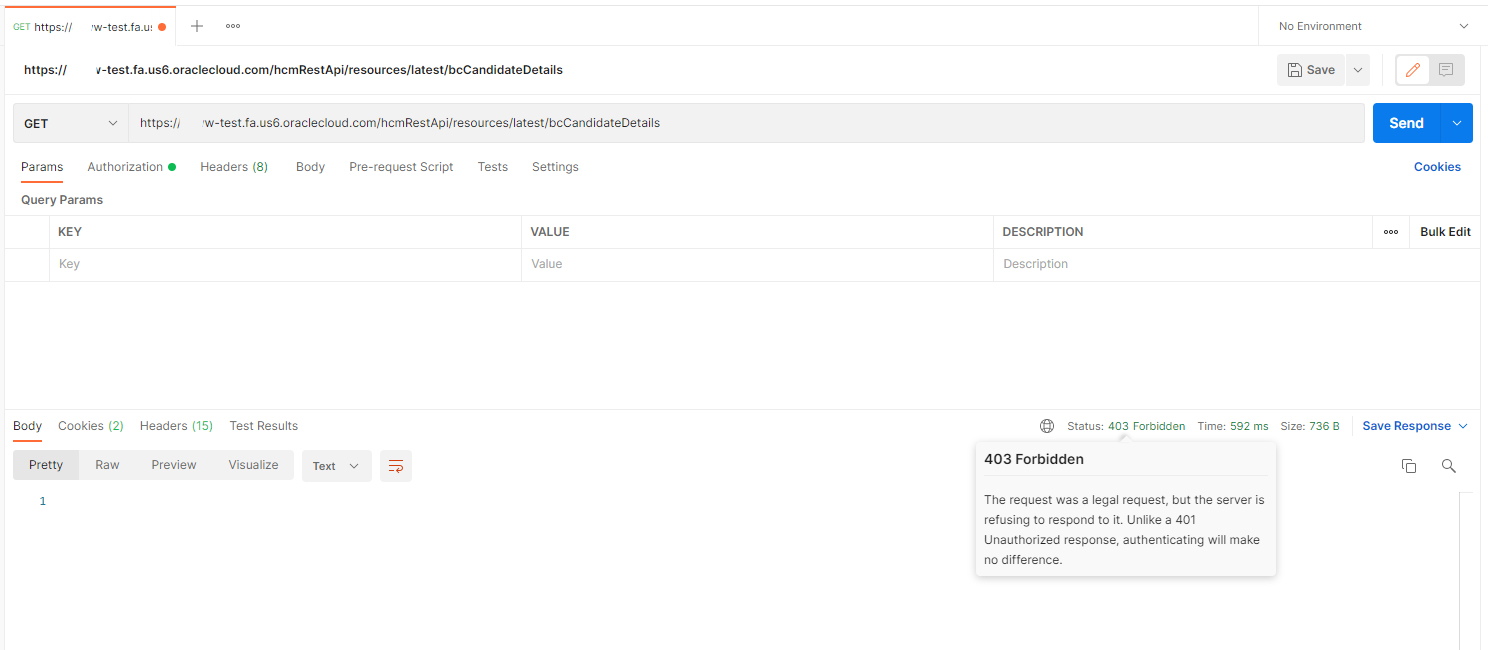
I simply rerun the Postman request from earlier and see that I am now being return with a 403 Forbidden Error.
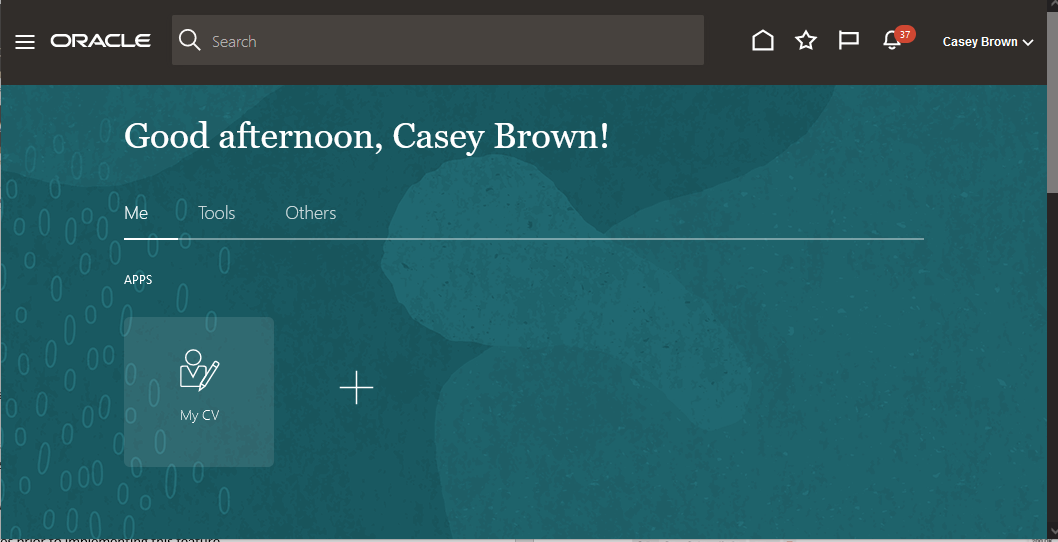
At this stage Fusion Applications UI access is also restricted – you will not be able to use the Security Console in this setting without making the “IT Security Manager” Role public to all IP Addresses as shown below.
Public Access for Specific Roles
In most cases there are parts of the application and REST APIs that need to be accessed from any or an unknown IP in this example for example the Recruiter could be on the Road and using their mobile device to access the application. For this to work we need to enable the required role for Access from All IP Addresses.
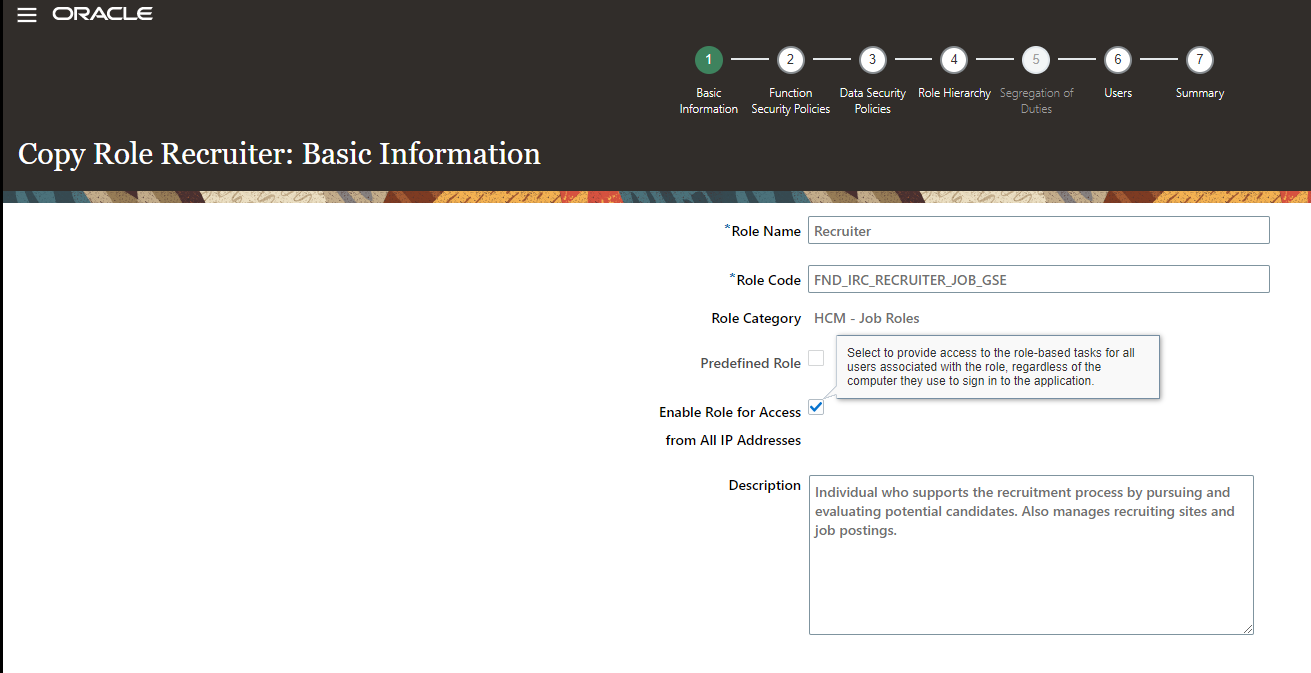
Make a copy of the predefined Recruiter Role as you cannot edit predefinded roles.
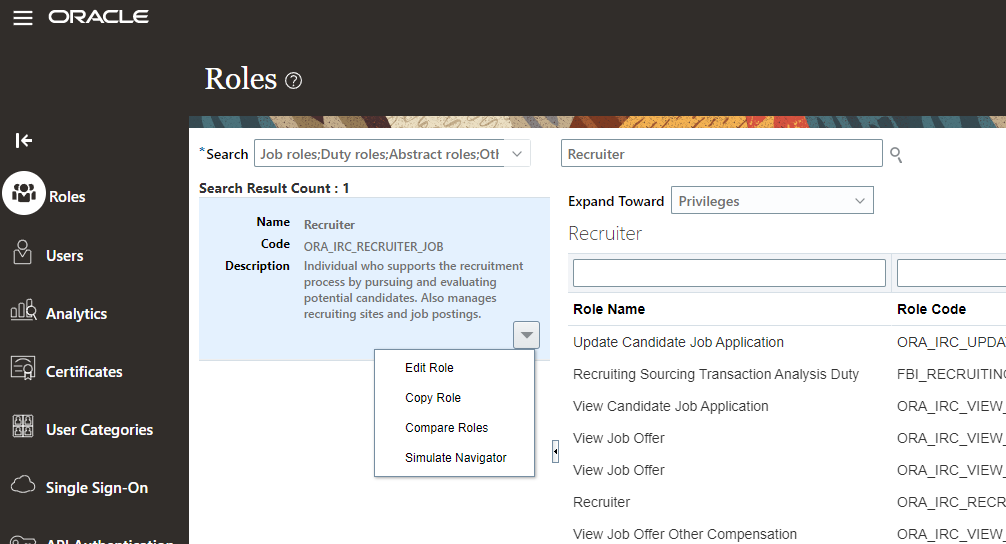
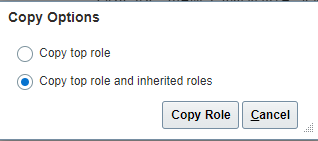
As part of the copy process we are enabling the access for all IP Adresses via the corresponding checkbox, which allows all users with this particular Role to access the data associated with the Recruiter Role without having to access from one of the IPs in the Allowlist.
Make sure to assign the copied role to the account you are planning to use.
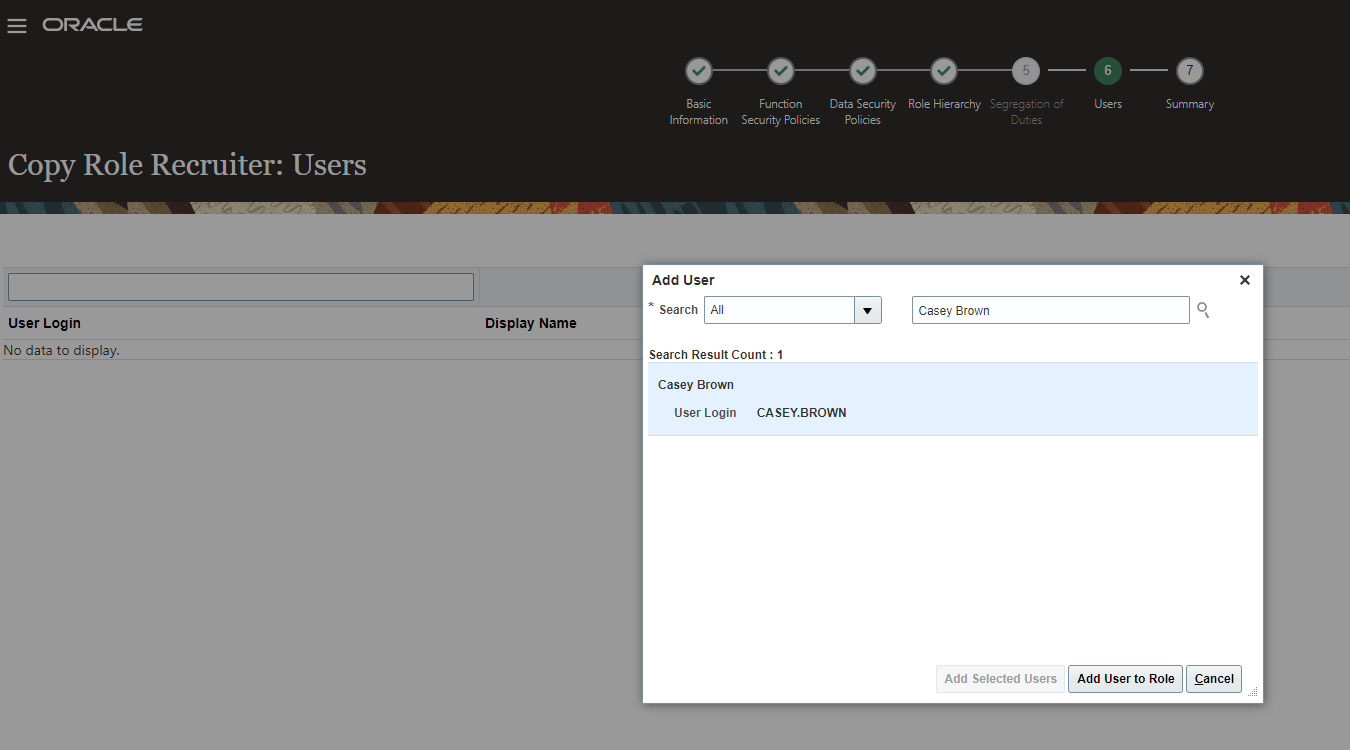
Follow through the screen and monitor the Role Copy Status in the Administration Tab. Once completed our user has the Recruiter Role and therefore has access to the candidate profiles. We test this back in Postman and now it makes no difference which IP we are coming from as having the Public Role Recruited allows to access from any location. Postman now returns the results even while connected to the VPN.
Avoiding Lockouts
During the implementation phase as well as the initial testing phase it’s strongly recommended to make sure you don’t lose access to the environment by locking yourself out. Two things can be done to achieve this:
- Make sure all the IPs where you are administrating the system from are in the IP Address Allowlist. It’s common for VPN addresses and Home IPs to change frequently so best to determine the IP Ranges prior to implementing this feature.
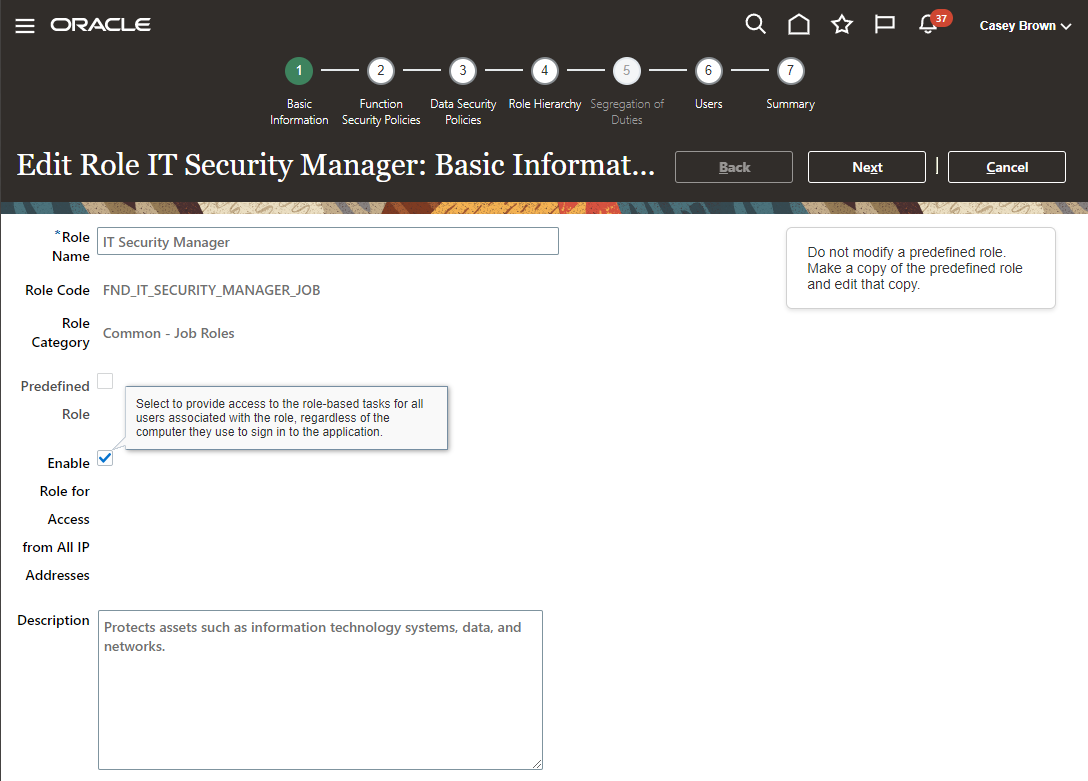
- Temporarily enable the Role IT Security Manager for access from all IP Addresses. This can be done by clicking Roles in the Security Console and entering “IT Security Manager” in the Search Bar – select the desired Role and hit the dropdown arrow to select “Edit Role”. Enable the checkbox for “Enable Role for Access from All IP Addresses” – this can only be done after LBAC was enabled so proceed with caution.
Note that I am not using the predefined ORA_FND_IT_SECURITY_MANAGER_JOB role, but the custom role FND_IT_SECURITY_MANAGER_JOB to implement this change as it is not possible to change a predefined Role.
Conclusion
Location-Based Access Control is a straightforward solution to lock down the access to Fusion Applications and its REST APIs to a specific set of IPs. The feature allows very granular control over what data is exposed to the public Internet and will improve the security for most environments.
Further Reading
Overview of Location-Based Access
https://docs.oracle.com/en/cloud/saas/applications-common/22b/facsa/overview-of-location-based-access.html#s20068058
REST API for Oracle HCM Cloud
https://docs.oracle.com/en/cloud/saas/human-resources/22b/farws/index.html